YYCam Pro Plugin User Guide: Chat Panel Plugins
I. Overview
Welcome to YYCam Pro! The YYCam Pro Marketplace offers broadcasters a wide range of professional streaming plugins. This guide is designed to help you quickly locate plugin purchase options and master the core usage of "Chat Panel Plugins", enabling efficient live stream interaction management and significantly enhancing your stream’s presentation quality and on-screen atmosphere.
II. Step-by-Step Instructions
(1) Purchase Path: Where to Find Plugins
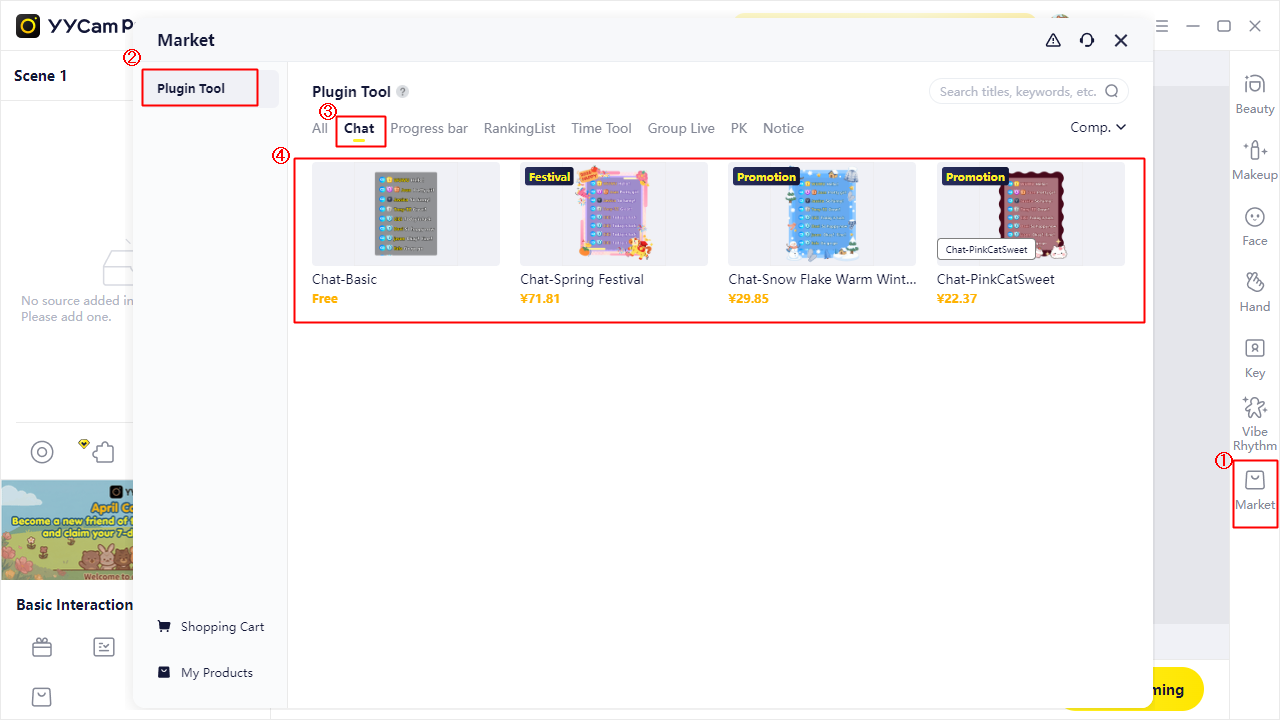
1. Open the YYCam Pro "Market"
2. In the left-side navigation menu, select "Plugin Tool"
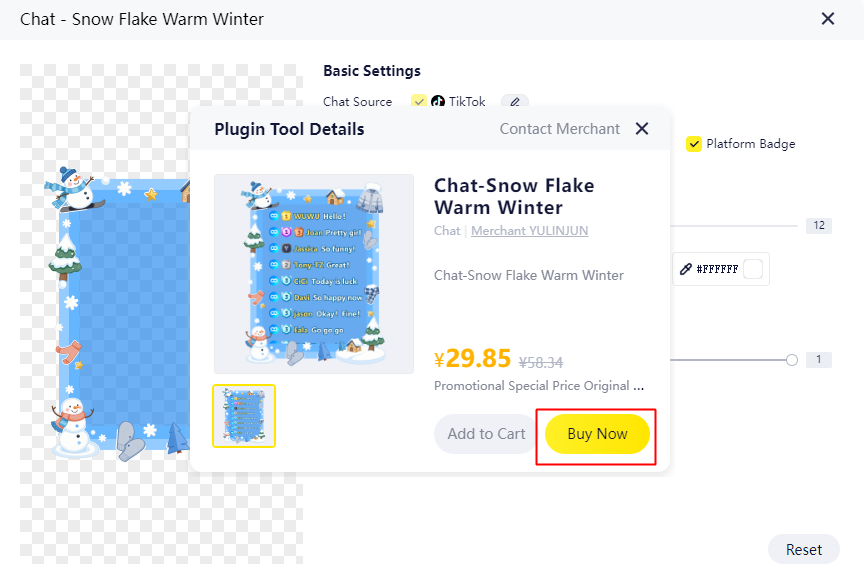
3. Under the "Chat" category, browse and select your desired chat panel plugin. Click "Buy Now" to proceed with the purchase.
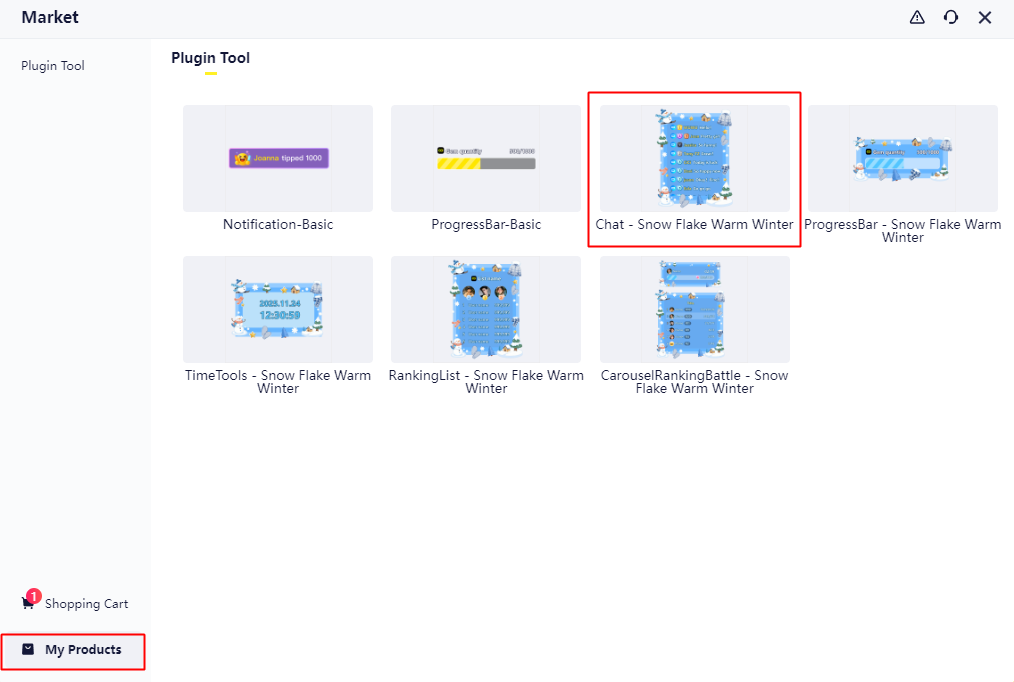
4. Return to the Resource Square and click "My Products" in the left-side navigation menu to access your purchased plugin tools
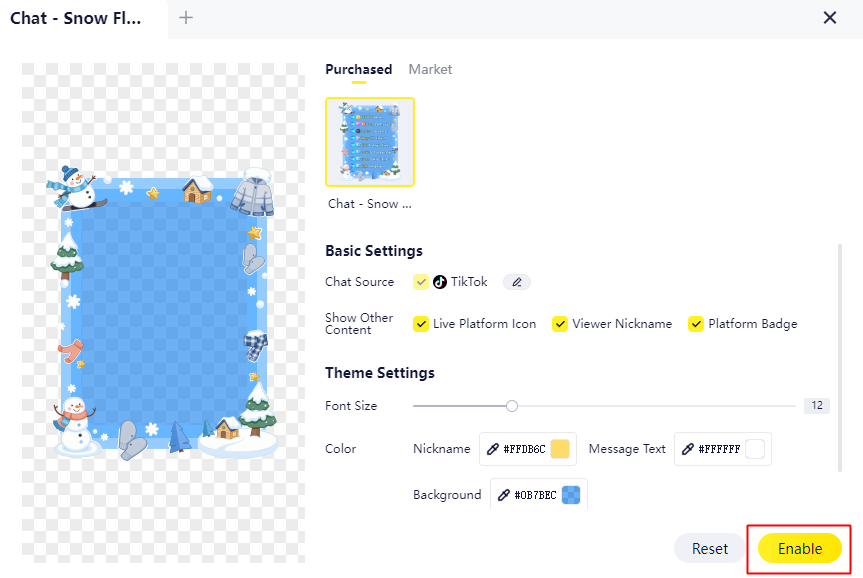
5. Click to use the plugin, configure its settings, then click "Enable" to add the source
(2) Chat Panel Plugins: Display Multi-Platform Interaction Messages
2.1 Function Overview
Chat Panel Plugins are designed to display public chat messages from currently connected platforms. They also allow fine-grained control over displayed content, helping you present interaction data more clearly and effectively.
2.2 Customizable Display Content (Select as Needed)
- Live Platform icon.
- Viewer Nickname.
- Platform Badge.
2.3 Style Customization
- Adjustable font size.
- Customizable chat font color.
2.4 How to Enable
- After completing the setup, click "Enable" to add the source.
- If TikTok platform is not yet bound, the system will automatically open the platform binding page to guide you through the process.
Tips:
- Chat panel must be linked to the relevant platform before use.
- Currently supported live streaming platforms: TikTok (Other platforms are under integration — stay tuned!).
III. Usage Tips
- We recommend completing platform binding before enabling any chat panel plugins
- Adjust plugin styles according to your live stream theme to ensure visual consistency — this helps improve viewer retention
- For chat panel plugins (e.g., pop-up messages, interaction alerts), pair them with clear verbal prompts (e.g., “Send '666' or ‘Good luck!’”) to help broadcasters promptly respond to interactions. This significantly increases audience engagement and live stream activity
IV. Frequently Asked Questions
Q1: After installing the plugin, no effect appears in the streaming software. What should I do?
A1: Please check the following in order:
① Whether the plugin has been successfully enabled
② Whether the stream URL and stream key are correctly entered
③ Try restarting the streaming software
Q2: Will the plugin affect streaming performance?
A2: The YYCam Pro plugins are deeply optimized with minimal resource overhead. If you experience lag or stutter:
① Check your local network conditions
② Confirm no other high-resolution effects are currently running simultaneously
③ Consider reducing the number of stacked effects
Q3: Can multiple chat panel effect plugins be used at the same time?
A3: Yes, multiple chat panel plugins can be used simultaneously. However, please note that overlapping effects may cause visual clutter. We recommend adjusting their trigger priority in the management panel or using them in distinct session scenarios to maintain clarity.
Q4: How to get support if I encounter issues?
A4: Please visit the #store-support channel in the YYCam Pro Discord server to submit your query:
https://discord.com/invite/Raz6uCMMwA
Describe your issue clearly and include screenshots. Our technical team will respond as soon as possible.
V. Closing Remarks
Thank you for choosing YYCam Pro.
We hope these tools empower your live streaming journey, making every broadcast smoother, more professional, and more meaningful. If you have any suggestions or questions during use, please don’t hesitate to contact us.
Wishing you successful and rewarding streams!
YYCam Pro Team