YYCam Pro Plugin User Guide: Progress Bar Plugins
I. Function Overview
Welcome to YYCam Pro! The YYCam Pro Store offers a variety of live streaming plugins for streamers. This guide is designed to help you quickly learn how to access the plugin purchase interface and master the core usage methods of the "Progress Bar plugins", enabling you to efficiently manage live-streaming interactions and significantly enhance the performance and atmosphere of your live stream.
II. Usage Steps
(1) Purchase Location: Where to Select the Plugin
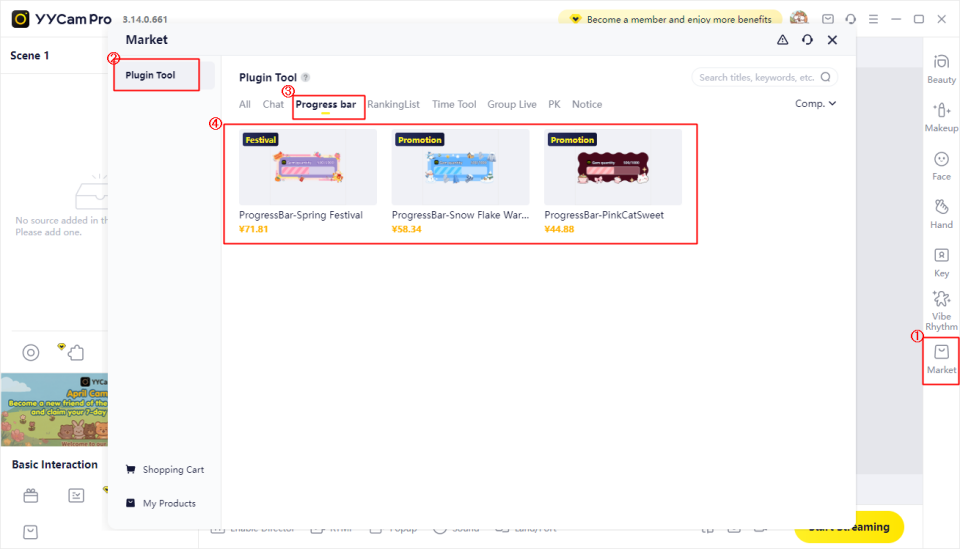
- Open the YYCam Pro "Market".
- Find the "Plugin Tool" in the left navigation bar.
- Select a Progress Bar plugin from the "Progress Bar" category. After selection, click "Buy Now".
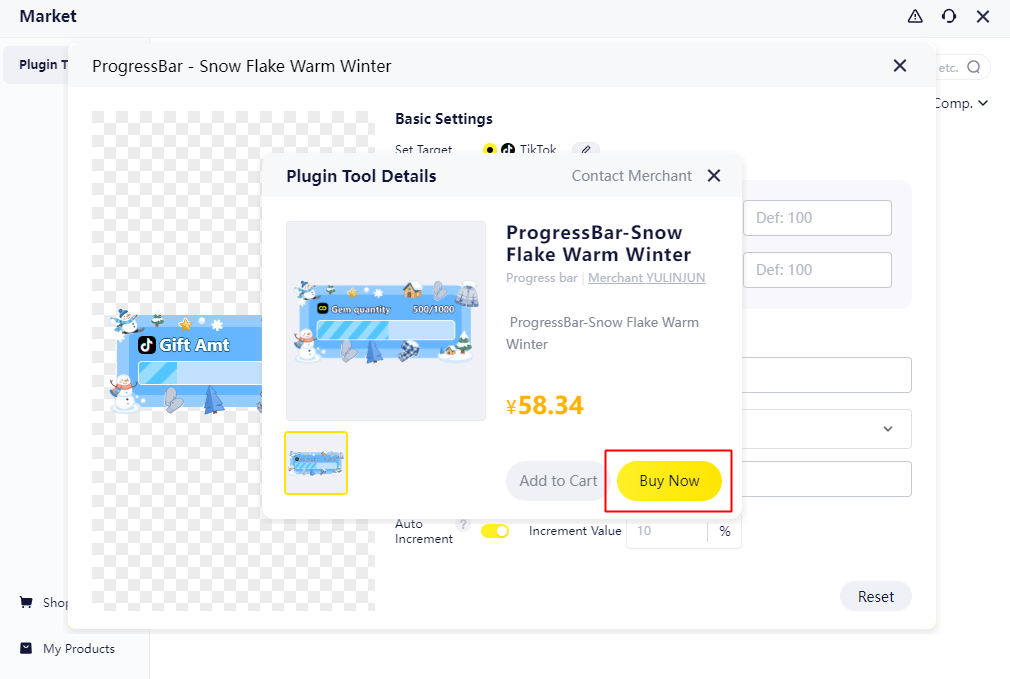
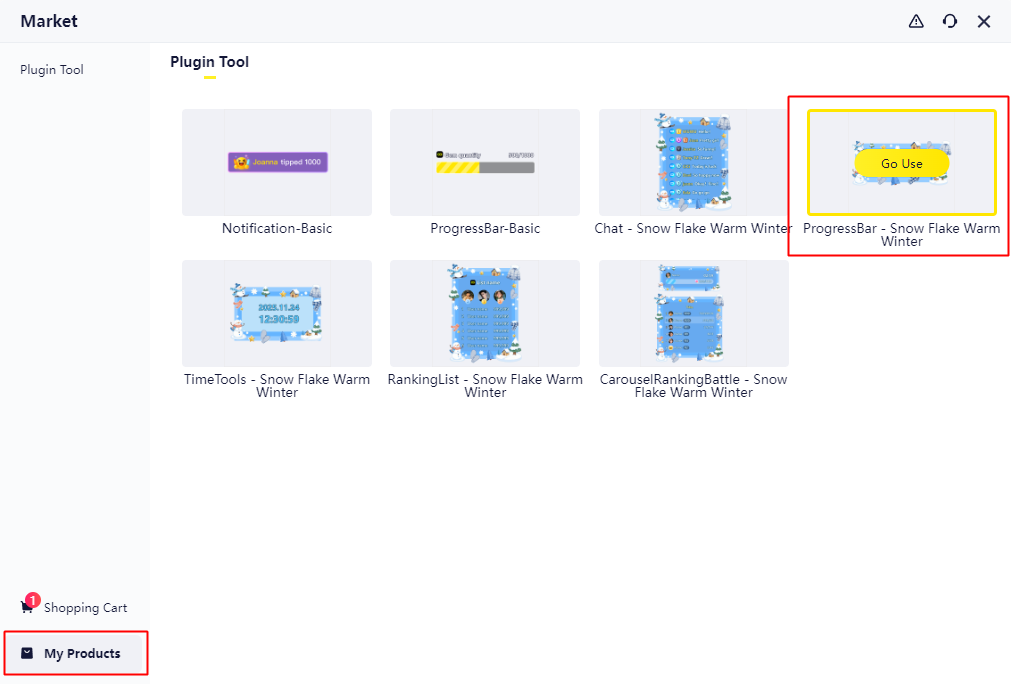
4. Return to the Market, and click "My Products" in the left navigation bar to use the purchased plugin tools.
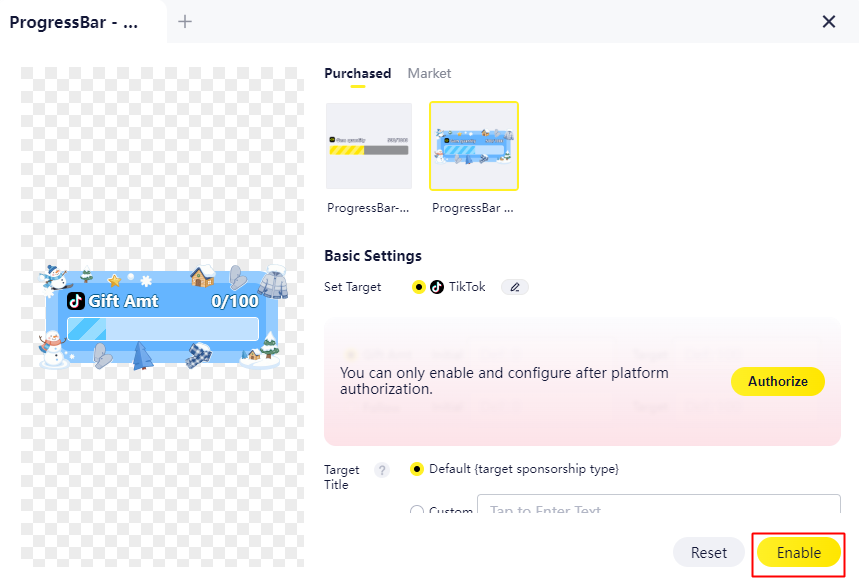
5. Click "Go Use", complete the settings, and then click "Enable" to add the plugin to your stream.
(2) Progress Bar Plugin: Real-time Display of Achievement Progress
- Function Overview
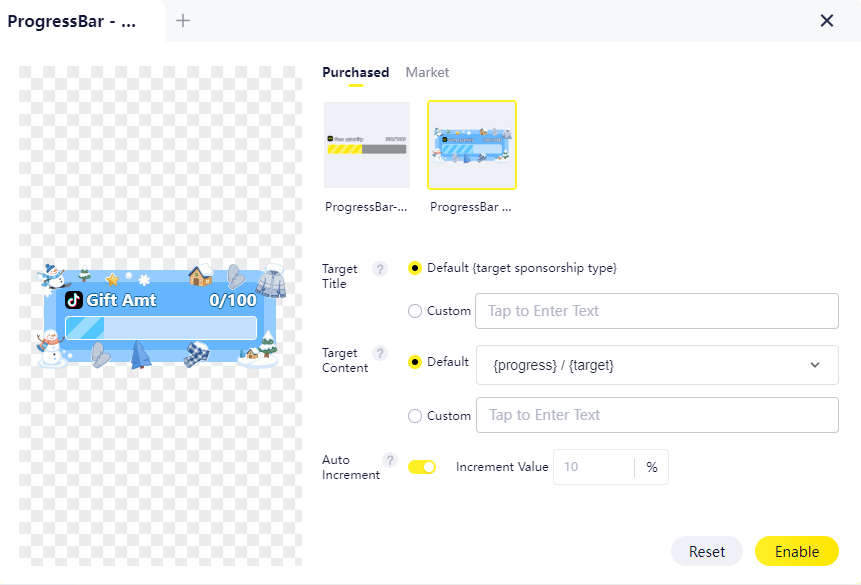
The Progress Bar plugin allows you to set goals such as "Followers/Favorites/Target Value," and dynamically display the progress toward those goals. It is ideal for interaction guidance and goal-driven engagement during live streams.
2. Core Settings
- Custom Target Title (e.g., "Followers Target Rush")
- Custom Progress Bar Display Content (e.g., "Completed / Remaining")
- Dynamic Style Adjustment to create a visually consistent experience aligned with your stream’s theme.
3. Auto Increment (Advanced Usage)
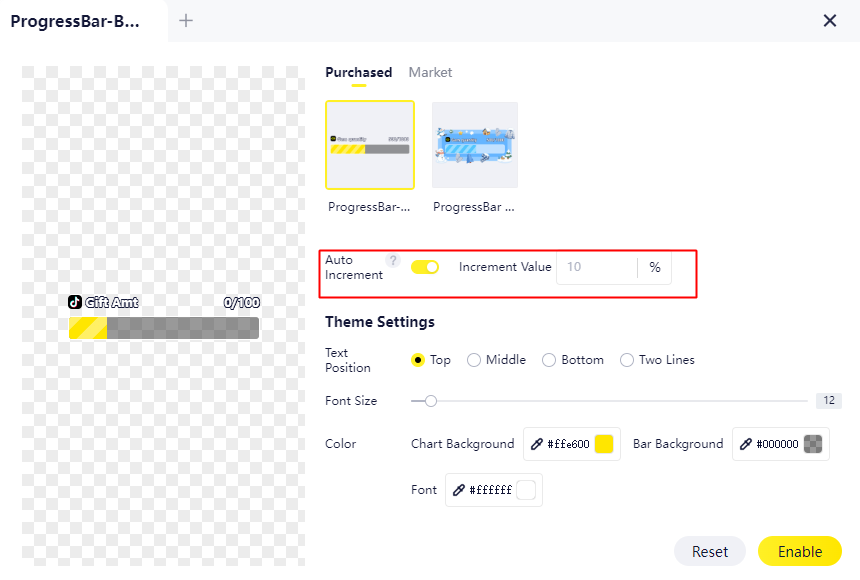
- When "Auto Increment" is enabled, the progress bar will automatically increase by the set increment once the target is reached.
- The increment is based on the initial target value and is suitable for long-duration streams aiming for continuous progress.
4. How to Enable
After completing the settings, click "Enable" to add the plugin to your stream.
Note:
· Before using the Progress Bar plugin, you need to bind it with the related platform.
· Currently supported live streaming platform: TikTok (other platforms are under integration — please stay tuned).
III. Tips for Use
- It is recommended to complete the platform binding before enabling the Progress Bar plugin to ensure real-time data updates.
- The style of the Progress Bar plugin can be adjusted flexibly according to the theme of your live stream, which helps maintain a consistent visual atmosphere and increases viewer engagement.
- Use verbal reminders to update the progress and goal, such as “We’re just 2,000 yuan short of our target — come on and help us reach it!” to encourage participation and boost interactivity.
IV. Frequently Asked Questions
Q1: The progress bar data is not updating.
A1: Check if the target values are correctly set and ensure the data source is functioning properly. If necessary, click the "Reset" button to refresh the data.
Q2: Can the time format be customized?
A2: Yes, you can customize the font, color, size, and text position. After making changes, be sure to click "Save", and then refresh the live stream source.
Q3: Will the plugin affect the stream performance?
A3: If you experience lag, you can reduce the animation effects or disable some visual effects to prevent excessive plugin usage, which may cause performance issues.
Q4: How to get support if I have a problem?
A4: Please submit your question in the "#store-support" channel on the YYCam Pro Discord server at https://discord.com/invite/Raz6uCMMwA. Describe the issue clearly and include screenshots, so our technical team can assist you promptly.
V. Conclusion
Thank you for choosing YYCam Pro.
We hope these tools will genuinely assist you in your live-streaming creation, making every stream easier, more professional, and more engaging. If you have any suggestions or questions during use, feel free to reach out to us.
Wishing you smooth and successful live streams!
YYCam Pro Team